sago_multi_scrambler_puzzle2
Checkout
Non-GitHub git clone https://repos.poulsander.com/repos/sago_multi_scrambler_puzzle2
HTTPS git clone https://github.com/sago007/sago_multi_scrambler_puzzle2.git
SSH git clone git@github.com:sago007/sago_multi_scrambler_puzzle2.git
# Sago's Multi Scrambler Puzzle II
A puzzle game featuring different kind of puzzles.
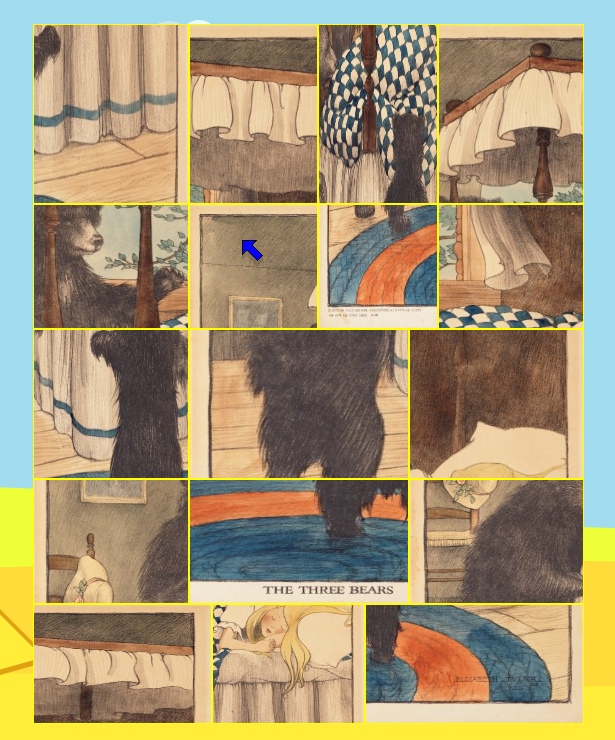
## Screenshot
## Building
```
cmake .
make
```
## Run
Currently an image must be given on the command line like so:
```
./sago_multi_scrambler_puzzle2 [JPG_OR_PNG_IMAGE]
```
```
./sago_multi_scrambler_puzzle2 data/collections/fairy_tales/The\ Three\ Bears\ \(1918\).jpg
```
## Features
### Rectangular Mode
In the Settings menu, you can enable "Rectangular Mode" which creates puzzles with rectangular pieces instead of the default random splitting algorithm.
### Custom Piece Layout Editor
When in Rectangular Mode, you can customize the placement and size of puzzle pieces:
1. Open an image in Rectangular Mode
2. Select **File → Edit Piece Layout** to launch the piece editor
3. In the editor, you can:
- **Click** on a piece to select it
- **Drag** a selected piece to move it
- **Drag corners** to resize from that corner
- **Drag edges** to resize from that edge
- Press **N** to add a new piece
- Press **Delete** to remove the selected piece
- Press **Ctrl+S** to save the custom layout
4. Press **ESC** or close via menu to exit the editor
5. Your custom piece layout will be saved and used automatically the next time you load that image
Custom layouts are saved per-image based on the image's unique hash, so each image can have its own custom puzzle layout.
## Desktop Integration
### Adding "Open with Sago Multi Scrambler Puzzle II" to Context Menu
#### Linux (GNOME/Nautilus, KDE/Dolphin, etc.)
**Quick Install (Recommended):**
Simply run the program with the `--install-desktop-entry` flag:
```bash
./sago_multi_scrambler_puzzle2 --install-desktop-entry
```
This will automatically create the desktop entry file and update the desktop database.
**Manual Installation:**
1. **Create a desktop entry file:**
Create the file `~/.local/share/applications/sago-multi-scrambler-puzzle2.desktop`:
```ini
[Desktop Entry]
Version=1.0
Type=Application
Name=Sago Multi Scrambler Puzzle II
Comment=Image scrambling puzzle game
Exec=/full/path/to/sago_multi_scrambler_puzzle2 %f
Icon=/full/path/to/icon.png
Terminal=false
Categories=Game;LogicGame;
MimeType=image/jpeg;image/png;image/jpg;
```
Replace `/full/path/to/sago_multi_scrambler_puzzle2` with the actual path to the executable.
2. **Update the desktop database:**
```bash
update-desktop-database ~/.local/share/applications/
```
After this, right-clicking on an image file should show "Open With → Sago Multi Scrambler Puzzle II" in the context menu.
#### Windows
1. **Create a registry file** `sago-context-menu.reg`:
```reg
Windows Registry Editor Version 5.00
[HKEY_CLASSES_ROOT\SystemFileAssociations\image\shell\SagoMultiScramblerPuzzle]
@="Open with Sago Multi Scrambler Puzzle II"
"Icon"="C:\\path\\to\\sago_multi_scrambler_puzzle2.exe"
[HKEY_CLASSES_ROOT\SystemFileAssociations\image\shell\SagoMultiScramblerPuzzle\command]
@="\"C:\\path\\to\\sago_multi_scrambler_puzzle2.exe\" \"%1\""
```
Replace `C:\\path\\to\\` with the actual path to the executable.
2. **Import the registry file:**
Double-click the `.reg` file and confirm the import.
3. **To remove later** (create `sago-context-menu-remove.reg`):
```reg
Windows Registry Editor Version 5.00
[-HKEY_CLASSES_ROOT\SystemFileAssociations\image\shell\SagoMultiScramblerPuzzle]
```
After this, right-clicking on an image file will show "Open with Sago Multi Scrambler Puzzle II" in the context menu.